
Calibration
Calibrate your device's screen size and anaglyph glasses so Eyeli's tests measure deviation and dissociation accurately.
Calibration aligns Eyeli with your device's screen size and colour output, and with the red-green lenses of your anaglyph glasses. Complete both steps below before running any test.
Screen size calibration
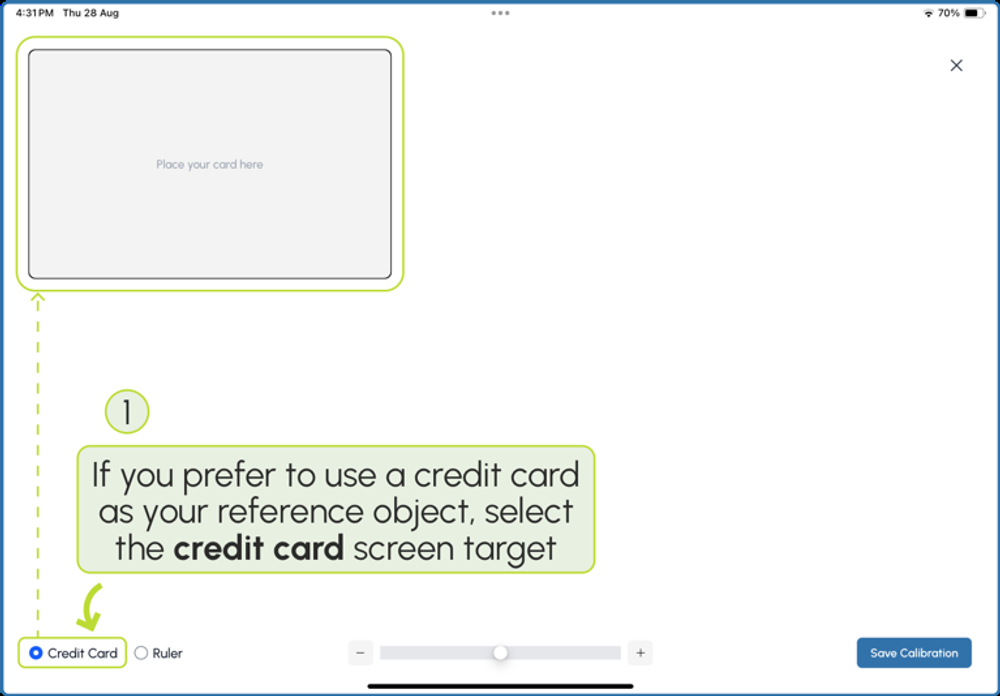
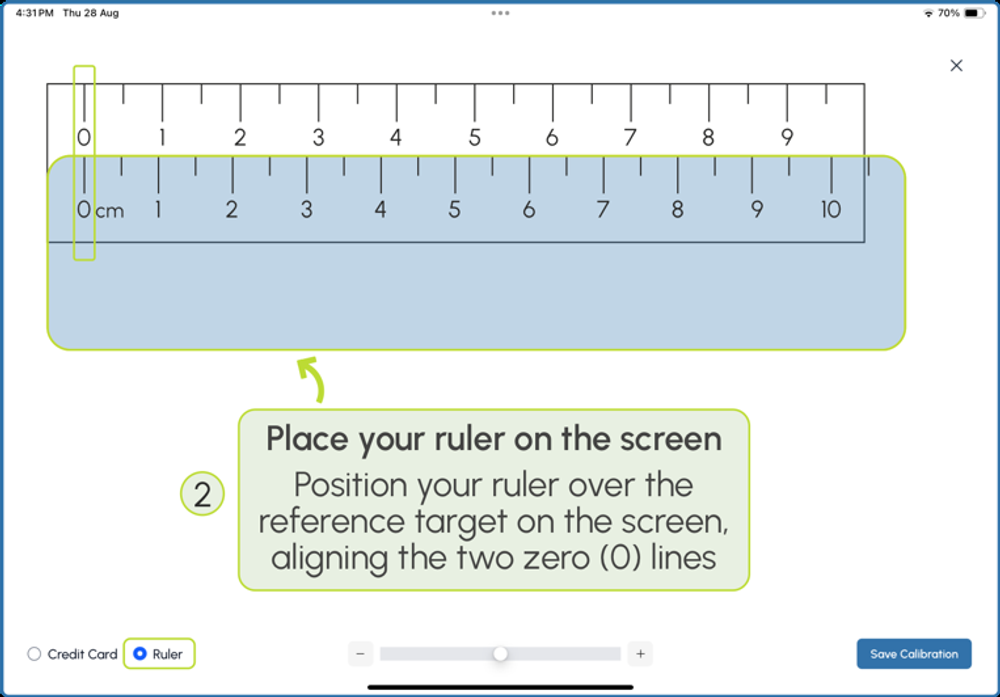
Choose a reference object - a credit card or a ruler - that Eyeli can use to calibrate the size of on-screen targets.
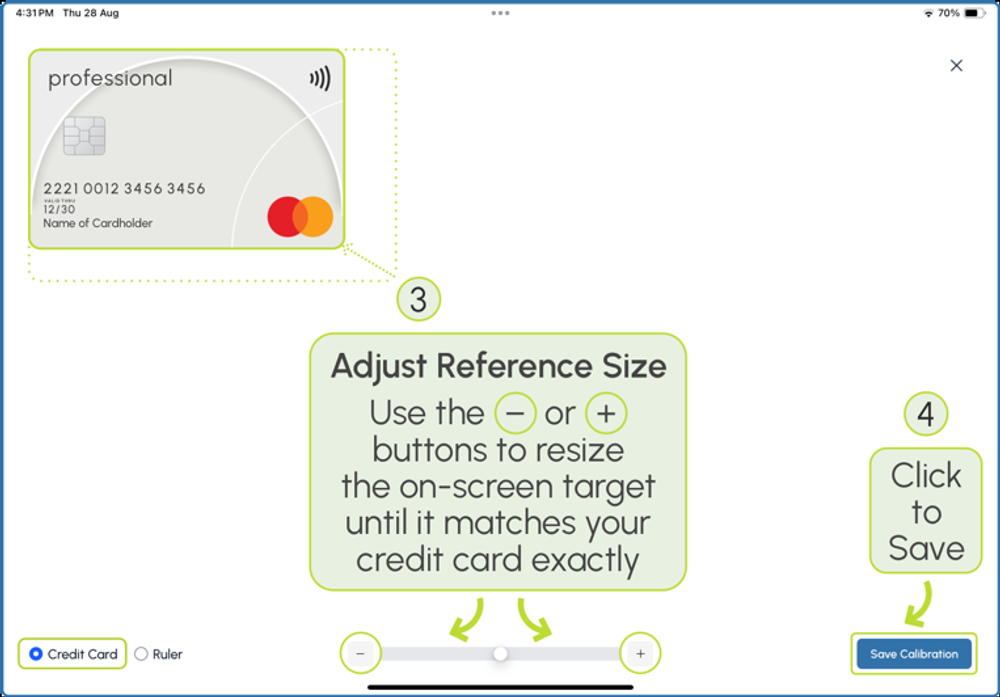
- Choose Credit Card or Ruler as your reference object.
- Place the object on the target displayed on screen.
- Use the + / − controls to adjust the on-screen target until it matches your object exactly.
- Click Save Calibration.
Anaglyph glasses calibration
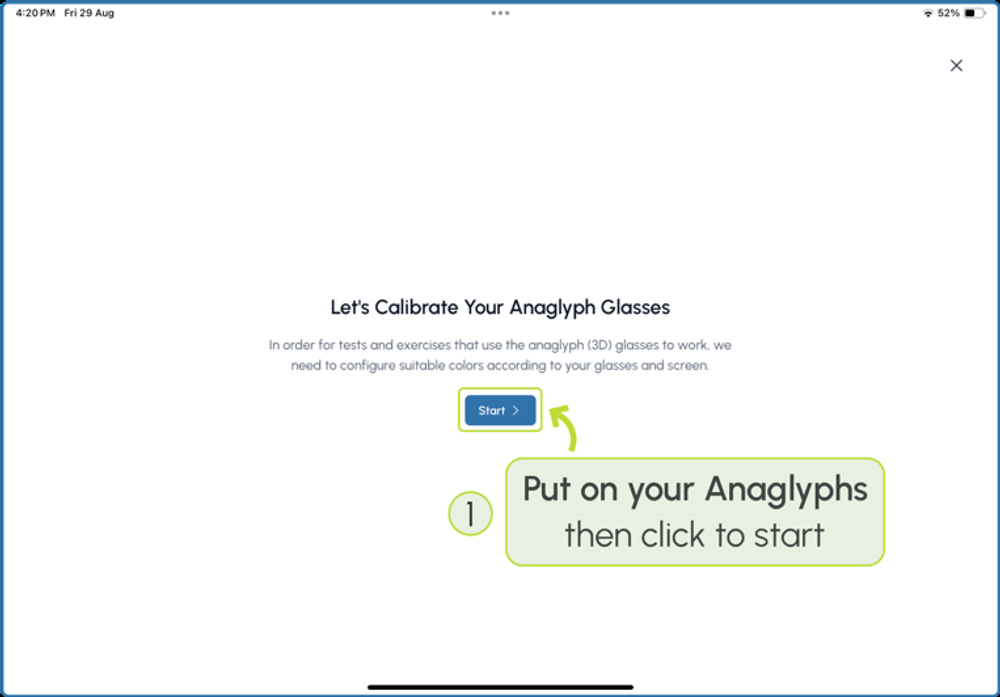
This step configures suitable colours for your red-green (anaglyph) glasses and screen, so binocular tests display correctly.
- Put your anaglyph glasses on, then click Start.
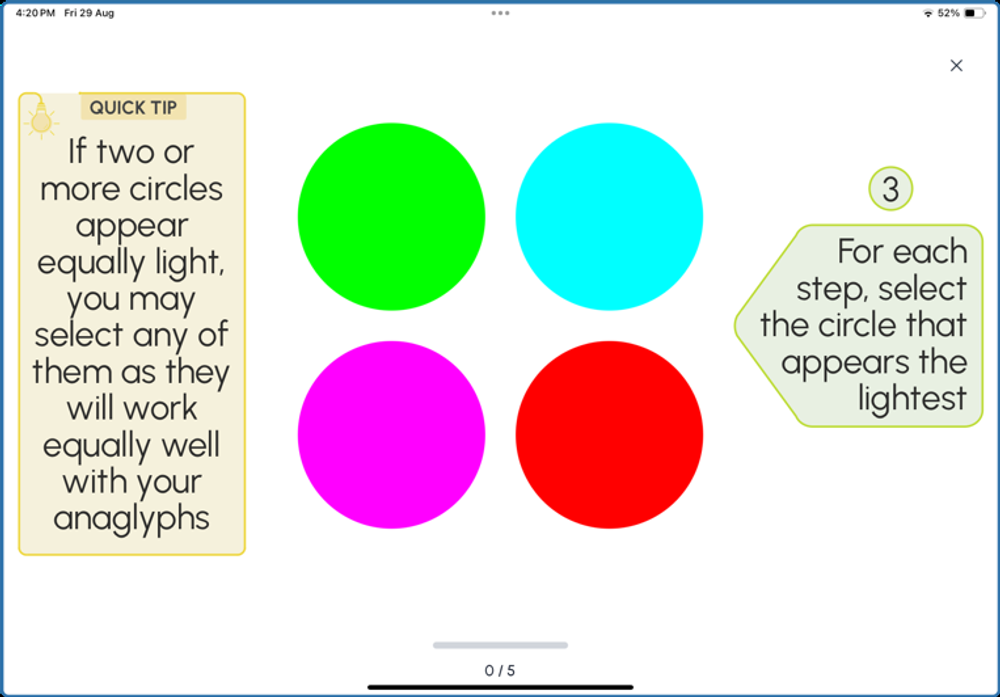
- Right eye: close your left eye and select the circle that appears lightest. You will complete 5 slides for the right eye.
- Left eye: close your right eye and select the circle that appears lightest. You will complete 5 slides for the left eye.
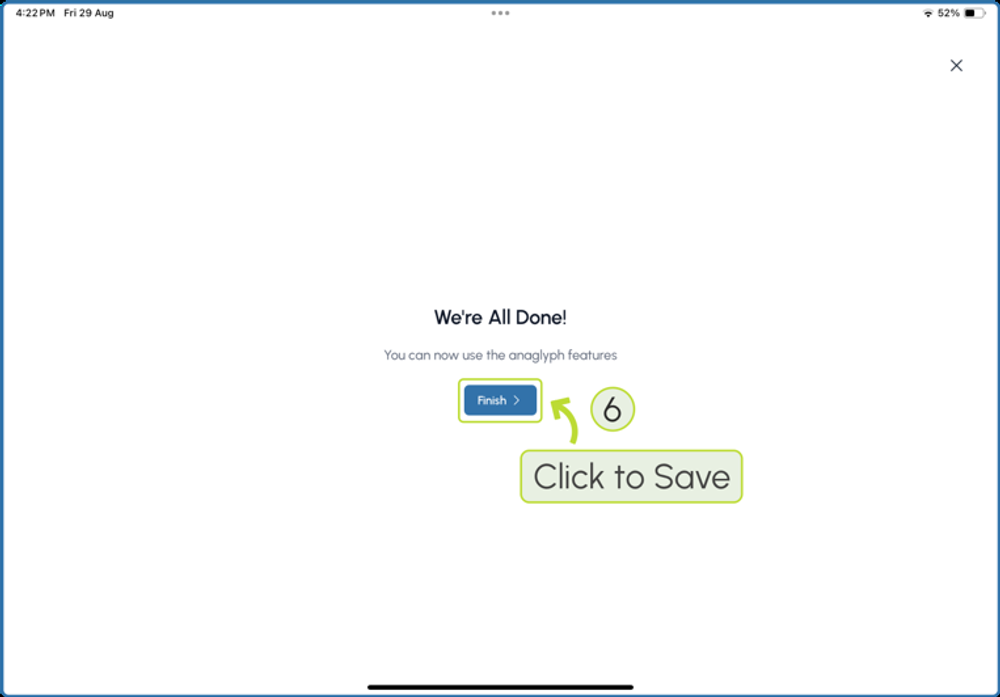
- Click Finish once complete.
If two or more circles appear equally light, this is not a problem - select any of them, as both options will work correctly with your glasses.
Redoing calibration
If you need to redo either the screen size or anaglyph calibration, click the User icon and select Calibration.